Chapter 08 · Publishing
Connect Blogger
Sign in with Google in a popup, choose the blog, and decide between drafts and live posts. What a Blogger draft contains, how images are handled, and what to do when Google revokes access.
Updated Sep 19, 2026 · 5 min read
On this page
Blogger connects through your Google account. There is no key to copy; you approve Serpio in a Google window, then choose which blog receives articles. Serpio creates each article as a Blogger post, as a draft or live, with your keywords as labels.
Before you start
- A paid Serpio plan.
- A Blogger blog. If you do not have one, open Blogger, use the blog selector, choose New Blog, and pick a free blogspot.com address.
- A Google account that owns or authors that blog. Serpio can only list blogs the signed-in account can write to.
- A browser that lets Serpio open a popup. The authorization happens in a separate Google window.
Connect with Google
- 1
Start the popup
Under Connections, open Blogger and press Connect with Blogger. A Google sign-in window opens and the Serpio button reads Waiting for authorization.
- 2
Approve Blogger access
Choose the Google account, then allow access to Blogger. Serpio asks for Blogger access only, plus permission to refresh the sign-in later so the connection keeps working without you signing in again. Google's consent screen shows exactly what is requested.
- 3
Return to Serpio
The window closes on its own and Serpio verifies the grant by listing your blogs. If the Google window stays open, finish in that window; Serpio keeps waiting.
Choose the blog
After authorization the card reads Finish setup and the dialog says "Credentials verified. Save the connection to finish setup." The Destination block shows the Blog field. If the account has one blog, it is already selected: "We select the only available option automatically. Choose below when there is more than one." With several blogs, pick one; Customize destination changes it later. Set Scheduled articles and When Serpio sends an article, then press Save connection. The card turns Connected, and the dialog shows Connected as followed by the blog name, or a blog count when there are several.
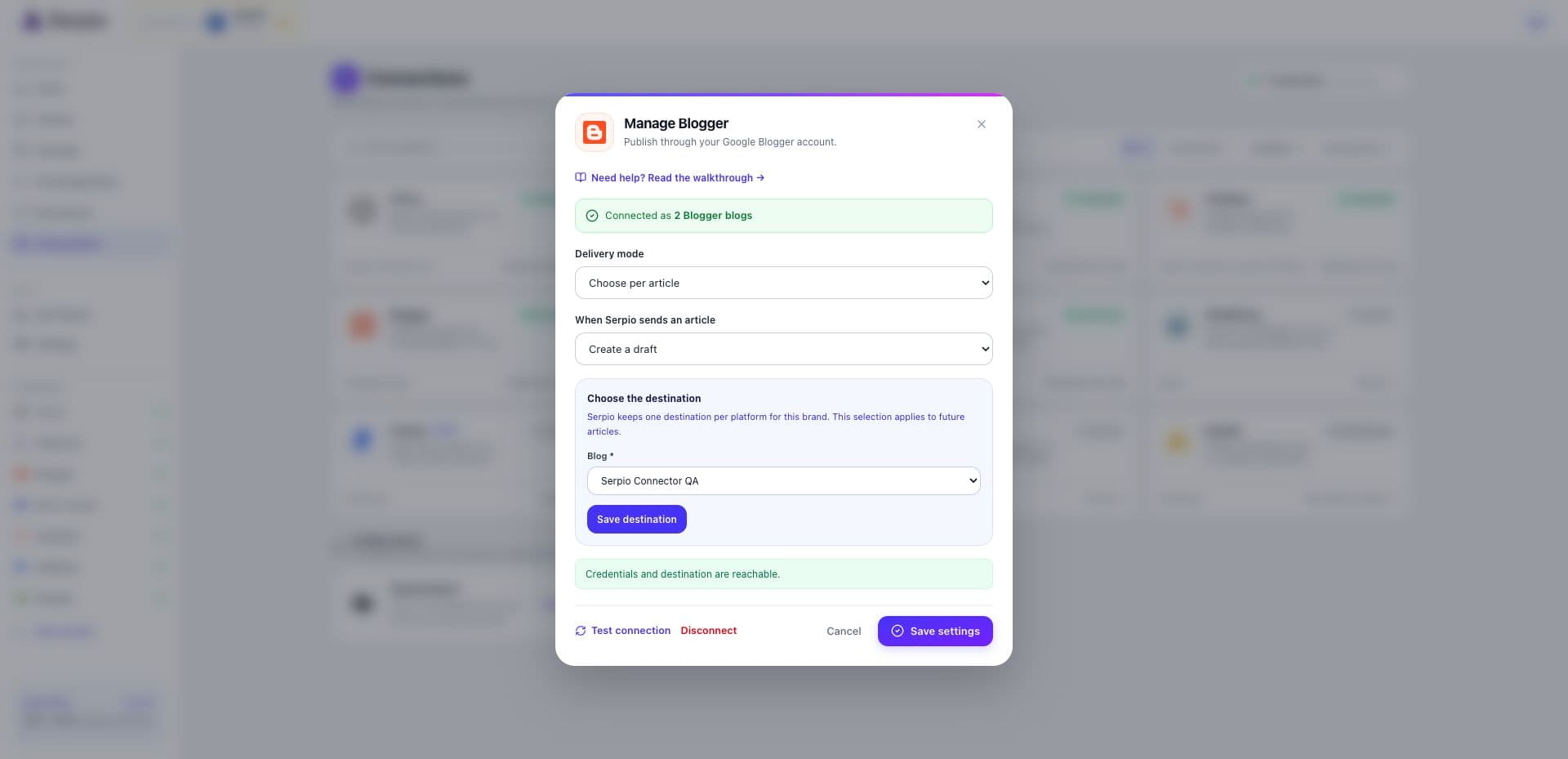
Draft or live
Create a draft asks Blogger to store the post as a draft. It is invisible to readers until you press Publish in Blogger. Publish live creates the post as published, public at once at the blog's address. Because Serpio never edits a post after creating it, switching to live later leaves earlier drafts as drafts. Start with drafts on a private or test blog, check the layout, then decide.
What a Blogger draft contains
Blogger's API accepts less than most blog platforms, so the mapping is short.
| Article content | In Blogger |
|---|---|
| Title | Post title |
| Body | Post content, as HTML |
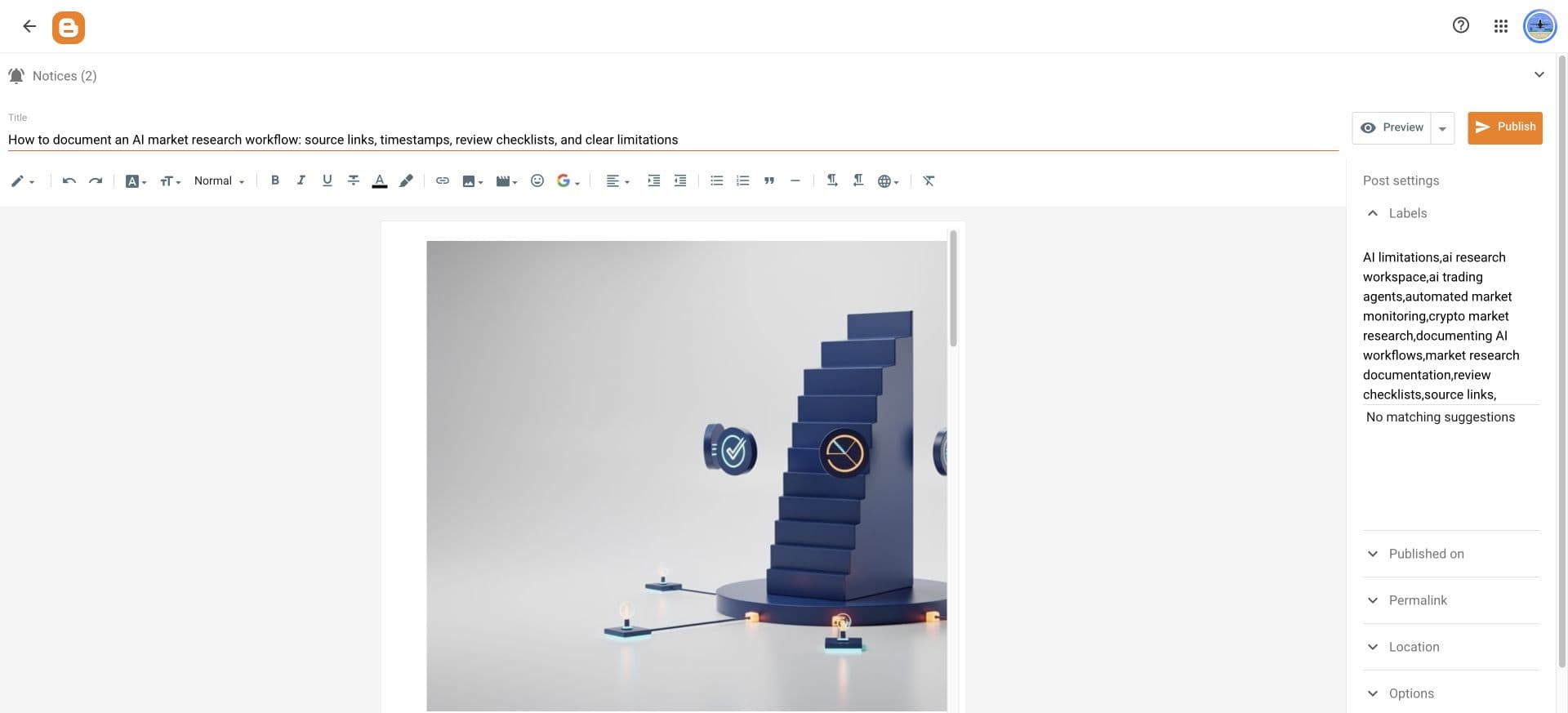
| Hero image | An image at the top of the content, with alt text. Blogger has no separate cover field. |
| Keywords | Labels, up to 20, within about 200 bytes in total |
| Slug, summary, SEO title and description, canonical URL, author | Not sent. Blogger sets the permalink itself. |
The hero image is referenced by its Serpio-hosted URL; it is not uploaded into Blogger's image storage. Serpio adds it as the first image in the post unless the body already contains that exact image. If a keyword does not fit within Blogger's label limits, Serpio leaves it out rather than truncating it and says so in Delivery details, for example "1 keyword omitted to fit Blogger's label limits."
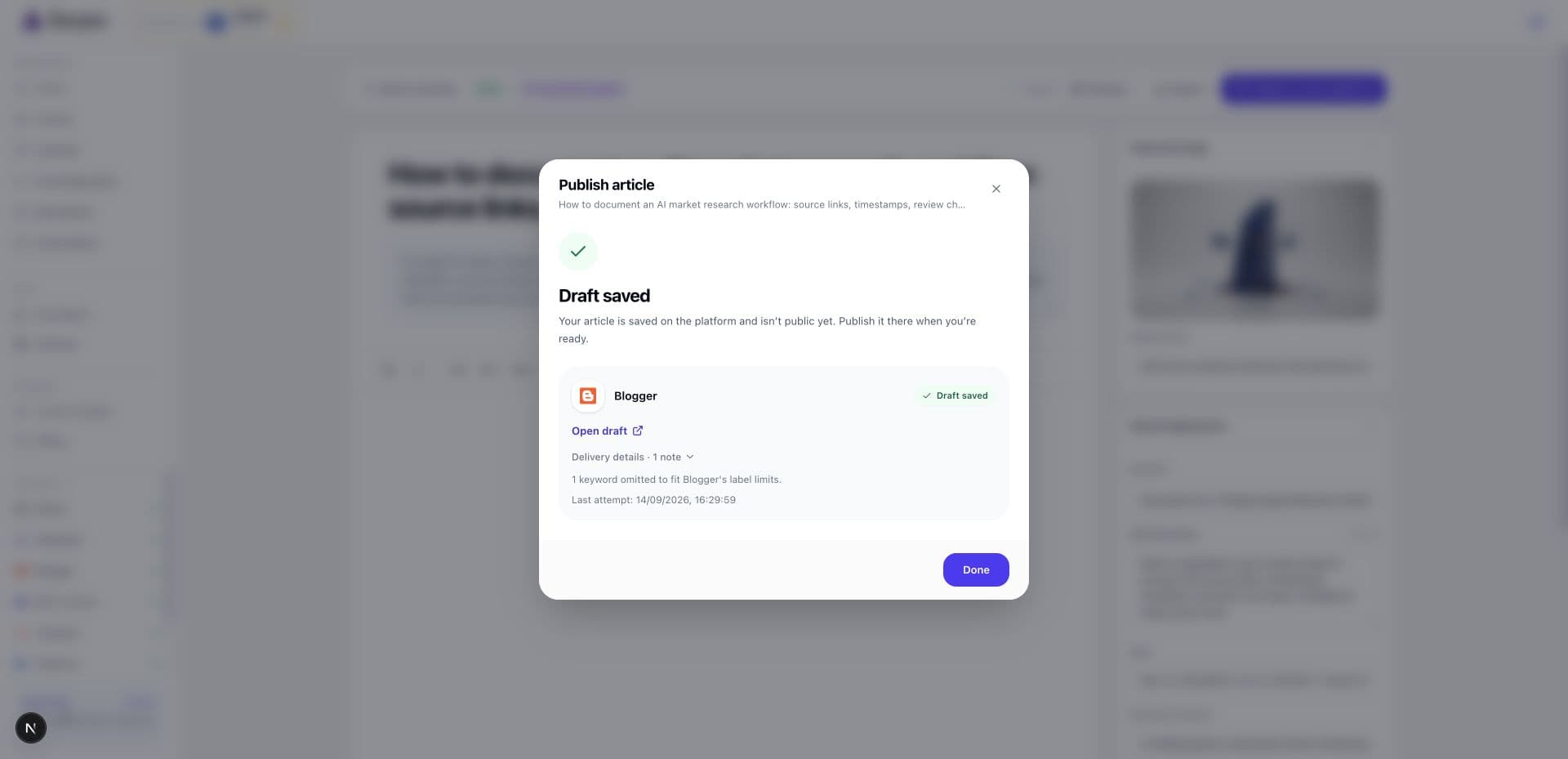
Find and preview the draft
The Open draft link in Serpio opens the post in Blogger's editor. Or in Blogger, open the blog, choose Posts, and filter to Draft. Use Preview to check headings, lists, tables, links, and the image. Leave Publish alone while reviewing; publishing makes the post public. A public-looking link on a draft does not open for readers.
When Google revokes access
Google sign-ins expire, and Serpio refreshes them in the background before a delivery. If a refresh fails, for example because you removed Serpio from your Google account's third-party access, the connection changes to Reconnect and the dialog reads Reconnect required. Press Reconnect Blogger to run the Google window again. Your blog choice and delivery settings are kept. Test connection checks the grant and the blog without creating a post. Other causes are in Troubleshooting connections.
Common questions
Can I publish to more than one blog?
One blog per Serpio site. Use Customize destination to switch the connection to a different blog; new deliveries go there.
Why did a keyword disappear from the labels?
Blogger limits labels by count and total length. Serpio keeps whole labels in order until the budget is used and reports what it left out in Delivery details.
Does Serpio set the post's URL or search description?
No. Blogger builds the permalink from the title, and the API Serpio uses has no search description field. Edit those in Blogger if you use them.
Related guides
How publishing works in Serpio
Approve an article, choose where it goes, and Serpio creates it there once. The two settings every connection has, the five native destinations, the plan gate, and where to see results.
Read guideHero images
How Serpio generates and checks the featured image for each article, what the statuses mean, what happens when it fails, and how each destination receives it.
Read guideTroubleshooting publishing connections
Symptom by symptom: blocked popups, rejected credentials, missing destinations, failed tests, reconnect prompts, articles you cannot find, and webhook deliveries that go nowhere.
Read guide