Chapter 08 · Publishing
Connect a WordPress site
Two ways in: sign in with WordPress.com, or use an Application Password on a self-hosted site. What each path needs, what Serpio creates in WordPress, and what it does not set.
Updated Sep 19, 2026 · 6 min read
On this page
WordPress is one card under Connections with two ways to connect. WordPress.com / Jetpack signs you in through WordPress.com and asks you to pick a site. Self-hosted WordPress uses an Application Password from your own site's admin. Both create posts through WordPress's REST API. Pick the path that matches where your site is hosted; you do not set up both.
Before you start
- A paid Serpio plan. Native connections are not available on Free.
- An account on the site that can create posts. Editor or Administrator both work.
- For the self-hosted path: WordPress 5.6 or newer, served over HTTPS, with the REST API reachable at
/wp-json. WordPress disables Application Passwords on plain HTTP sites by default, and hosts that put the whole site behind Basic Auth, an access proxy, or a VPN block Serpio's requests. - For the WordPress.com path: permission to authorize Serpio for the site. Serpio only lists sites where the account can edit posts.
Path A: WordPress.com or Jetpack
- 1
Choose the tab
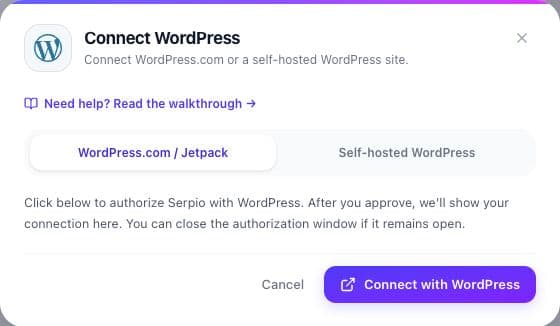
Open the WordPress card, press Connect, and select WordPress.com / Jetpack at the top of the dialog.
- 2
Authorize in the popup
Press Connect with WordPress. A WordPress.com window opens; sign in and approve the request. Keep the Serpio dialog open while the button reads Waiting for authorization. If no window opens, the dialog shows "Your browser blocked the authorization popup. Allow popups for Serpio and try again."
- 3
Confirm the site
Back in Serpio the card reads Finish setup and the dialog says "Credentials verified. Save the connection to finish setup." The Destination block lists the WordPress.com site. With one eligible site the choice is made for you: "We select the only available option automatically. Choose below when there is more than one." Use Customize destination to pick a different site.
- 4
Set delivery and save
Leave Scheduled articles on Review before sending and When Serpio sends an article on Create a draft for the first run, then press Save connection. The card turns Connected.
Path B: a self-hosted site with an Application Password
- 1
Create the Application Password
Sign in to your site's WP Admin and open Users → Profile. Scroll to Application Passwords, type
Serpioas the name, and press Add New Application Password. WordPress shows a 24-character string grouped in fours. Copy it now; WordPress does not show it again. - 2
Fill in the form
In Serpio, select Self-hosted WordPress and complete Site URL (the root of the site, for example
https://yourblog.com, without/wp-admin), Admin username (your login name, not your display name), and Application Password (spaces are fine; Serpio strips them). - 3
Press Test & save
Serpio asks WordPress for the authenticated user and checks that the reply contains a real user with capabilities. Nothing is written to the site. On success the dialog closes and the card reads Connected. There is no site to choose because the Site URL is the destination.
- 4
Set delivery
Scheduled articles and When Serpio sends an article sit in the same form, above the button. New connections default to Review before sending and Create a draft.
What a delivered article looks like in WordPress
Both paths create one post per article. It appears under Posts with status Draft or Published depending on the connection setting. Serpio sends the title, the HTML body, the excerpt, and the slug. The hero image is added to the media library with its alt text and set as the featured image. If that upload fails, the post is still created and the results carry a note such as "The post was saved without its featured image. You can add it in WordPress."
| Field | Self-hosted | WordPress.com |
|---|---|---|
| Title, body, excerpt, slug | Sent | Sent |
| Featured image with alt text | Uploaded to the media library | Imported by WordPress.com |
| Tags | Not sent | Article keywords become tags |
| Categories | Not sent | Not sent |
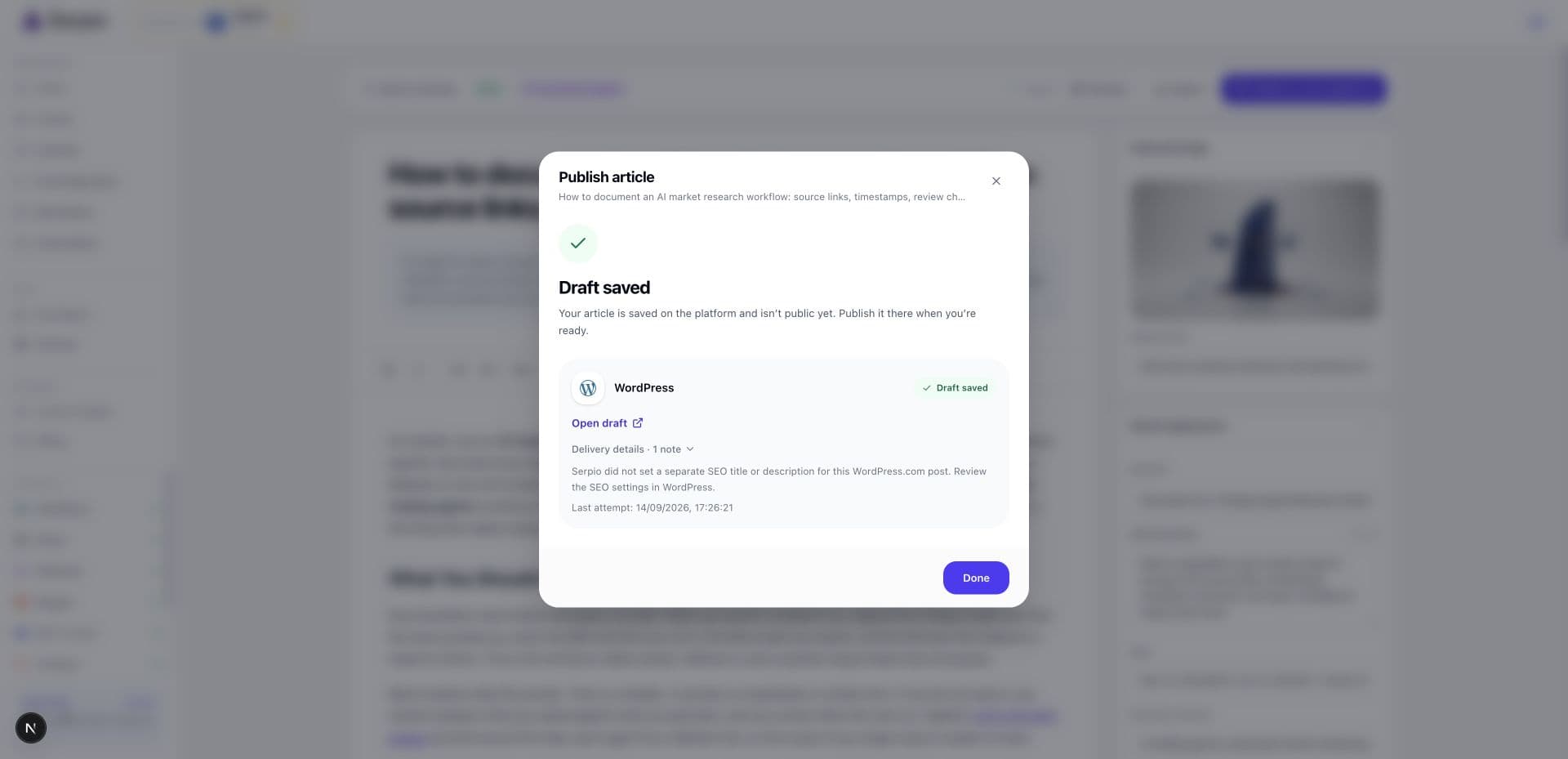
| SEO title and description | Written to the meta keys used by Yoast, Rank Math, AIOSEO, and SEOPress; they only stick if the plugin exposes those keys through the REST API | Not set; the results include a note to review SEO settings in WordPress |
| Canonical URL | Not sent | Not sent |
Draft or live
Create a draft saves the post as a WordPress draft. Nothing is public until you press Publish inside WordPress. Publish live creates the post with status publish, so it appears on your site as soon as WordPress confirms it. Serpio never changes a post after creation, so switching the connection to live later does not publish drafts that already exist. Start with drafts, check how your theme renders headings, lists, and tables, then decide.
When something fails
- An Unauthorized reply almost always means the Admin username is wrong. Use the login name shown when you hover your name in the top right of WP Admin.
- A message that the REST API was not found means
/wp-jsonis blocked. Openhttps://yourblog.com/wp-json/in a browser; if it returns an error page, a security plugin or host setting is disabling it. - A Forbidden reply means the account cannot create posts. It needs at least the Editor role.
- If you revoke the Application Password in WP Admin, the next delivery fails and the card changes to Reconnect. Open the card, press Reconnect credentials, enter a new password, and press Test & reconnect. Your delivery settings are kept.
- Disconnect in Serpio removes the saved credential from Serpio only. The Application Password row stays in WP Admin until you revoke it there.
For a longer list of causes, see Troubleshooting connections.
Common questions
Can I connect both WordPress.com and a self-hosted site?
Not for the same Serpio site. Each Serpio site holds one WordPress connection. Pick the path that matches where the blog lives.
Does Serpio need my WordPress admin password?
No. The self-hosted path uses an Application Password, which you can revoke on its own. The WordPress.com path uses an authorization you can withdraw from your WordPress.com account.
Where do tags and categories come from?
On WordPress.com, the article's keywords are sent as tags. Categories are never set, and the self-hosted path sends no tags. Add them in WordPress before publishing.
Related guides
How publishing works in Serpio
Approve an article, choose where it goes, and Serpio creates it there once. The two settings every connection has, the five native destinations, the plan gate, and where to see results.
Read guideTroubleshooting publishing connections
Symptom by symptom: blocked popups, rejected credentials, missing destinations, failed tests, reconnect prompts, articles you cannot find, and webhook deliveries that go nowhere.
Read guidePublishing history, delivery statuses, and retries
What each publishing status means, what Publishing results and Publishing history show, when Serpio retries on its own, and how to retry safely after an uncertain delivery.
Read guide