Chapter 01 · How-to guides
How to manage your connections
Change delivery settings, re-test credentials, reconnect after a revoked key, read the activity panel, and disconnect a destination cleanly.
Updated Sep 20, 2026 · 4 min read
By the end you will know every control on a connection page: where to change how articles arrive, how to check a connection without sending anything, how to replace a credential, and how to disconnect. Each task takes about a minute. Changing or testing a connection needs a paid plan; on Free the pill reads Upgrade and saves are refused.
Before you start
- A connected destination. See How to connect a publishing destination.
- A paid plan for any change. Saving or testing on Free returns "Native publishing connections are available on every paid Serpio plan. Manual exports remain available on Free."
- For a reconnect, the replacement credential from the provider, created as in its guide.
Steps
- 1
Open the connection page
Choose Connections and press a connected card. The page shows the destination name with a status pill (Connected, Finish setup, Reconnect, Upgrade, or Needs attention), then Account, Destination, and the two settings, Scheduled articles and When Serpio sends an article.
- 2
Read the activity panel
Below the settings, Last sent shows when an article last went out, or "No articles sent yet". Last checked shows the latest Test connection result, Passed or Failed, and when. Connected since shows the connection's age. Further down, Approved articles lists what is ready to send and Recently sent lists deliveries with their confirmed state, such as Draft saved or Live.
- 3
Change delivery settings
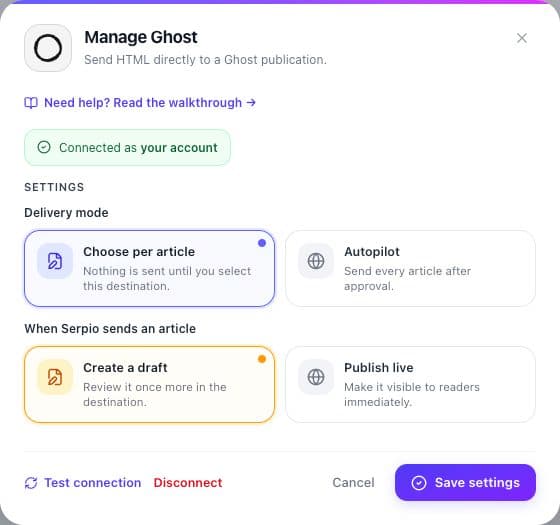
Press Manage. The dialog is titled Manage followed by the name and opens with a green Connected as banner. Change Scheduled articles or When Serpio sends an article, then press Save settings (Save connection where a destination choice exists). Changes apply to new deliveries; already sent articles keep their confirmed status.
- 4
Test the connection
In the same dialog press Test connection. Serpio re-verifies the credential and, where one is saved, the destination, without creating anything. Success shows "Credentials and destination are reachable." in green. Failure shows the provider's message in red and updates the pill.
- 5
Reconnect after a revoked credential
When the pill reads Reconnect, the banner reads Reconnect required with the provider's reason. Press Reconnect credentials and the credential fields reappear. Paste the new value and press Test & reconnect. Your settings and destination are kept. To back out, press Keep saved credentials. Blogger and WordPress.com connections show a Reconnect button that reruns the sign-in popup instead.
- 6
Disconnect
On the connection page press Disconnect. A browser prompt asks "Disconnect Ghost? Future drafts won't auto-publish here until you reconnect." (with your destination's name). Confirm and you return to Connections with the card reading Connect again. The Disconnect link inside the Manage dialog does the same without a prompt. Serpio deletes its copy of the credential; revoke the key or authorization at the provider too.
What happens next
Settings take effect on the next delivery. Already sent articles are not touched: a draft created under Create a draft stays a draft after you switch to Publish live, and switching scheduled delivery to Send automatically does not send existing articles. After a reconnect, deliveries that failed with an authorization error can be published again from the article; see Publishing history and retries.
If something looks off
- Needs attention after a test: a temporary error at the destination, not a credential problem. The connection is kept; run Test connection again later.
- Test connection passes but asks you to choose a destination: the credential works and a Blog or site still needs saving. Pick one and press Save connection.
- Reconnect comes back straight after reconnecting: the new credential cannot create posts. Check the role or scope in the provider guide.
- Last sent says "No articles sent yet" although you published: the delivery failed or went to another destination. Open the article and expand Publishing history.
- Disconnected by mistake: connect again. Delivery history stays on the articles.
Go deeper
- How publishing works in Serpio for what each setting does.
- How to connect a publishing destination and the provider guides, starting with WordPress.
- Publishing history and retries for retrying after a fix.
- Troubleshooting connections for failure messages by provider.
Common questions
Does disconnecting delete posts already created?
No. Posts stay in the destination. Serpio removes only its saved credential and the connection's settings.
If I switch scheduled delivery to Send automatically, do existing articles go out?
No. The setting applies only to scheduler-created articles completed after the change. Existing articles are sent only when you select the destination in Publish.
Why does Test connection not create a test post?
It verifies the credential and that the saved destination is still visible, nothing more, so it is safe to run against a live site.
Related guides
How publishing works in Serpio
Approve an article, choose where it goes, and Serpio creates it there once. The two settings every connection has, the five native destinations, the plan gate, and where to see results.
Read guideTroubleshooting publishing connections
Symptom by symptom: blocked popups, rejected credentials, missing destinations, failed tests, reconnect prompts, articles you cannot find, and webhook deliveries that go nowhere.
Read guidePublishing history, delivery statuses, and retries
What each publishing status means, what Publishing results and Publishing history show, when Serpio retries on its own, and how to retry safely after an uncertain delivery.
Read guide