Chapter 01 · How-to guides
How to publish an article to a connected destination
Send an approved or draft article from the workspace to WordPress, Ghost, Blogger, DEV, or a webhook, read each result row, and find the post afterwards.
Updated Sep 20, 2026 · 4 min read
By the end, the article exists at each destination you picked, as a draft or live according to that connection's setting, and Serpio shows a confirmed result per destination. It takes under a minute once the article is ready. Native publishing needs a paid plan; on Free, follow How to export an article instead.
Before you start
- At least one destination reading Connected. See How to connect a publishing destination.
- An approved article, or a draft you are ready to approve. From a draft, Publish approves it as part of sending. See How to edit and approve an article.
- A finished hero image. Publish is disabled while it is generating, with the hint "Wait for the hero image to finish generating."
- A glance at each connection's draft or live setting. What the dialog shows per row is what will happen.
Steps
- 1
Open the article and press Publish
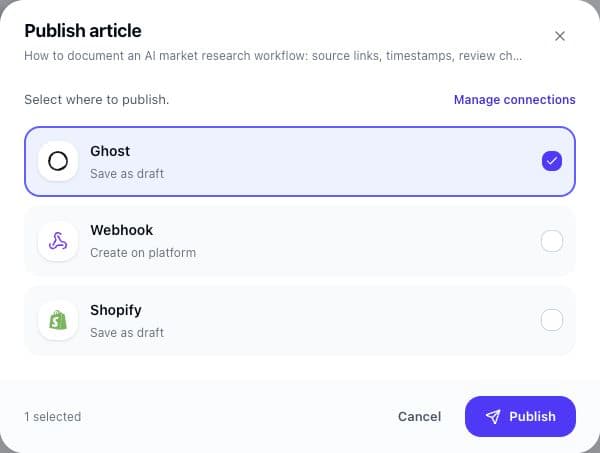
In the article workspace, press Publish in the top bar. Serpio saves your latest edits, then opens the Publish article dialog with the article title under the heading.
- 2
Select where to publish
Under Select where to publish, each connected destination is a row showing its name and what will happen: Save as draft, Publish live, or Send to webhook · visibility managed by receiver. Tick one or more. A greyed-out row shows why it cannot be used, such as Upgrade needed or Reconnect needed, or because this article already went there. Manage connections at the top right opens Connections.
- 3
Check the autopilot note
Select every destination that should receive this article. The Publish button remains disabled until at least one available destination is selected.
- 4
Press Publish
The dialog switches to Publishing to your platforms and shows each destination moving from Request received to Sending to Confirmed.
- 5
Read each result
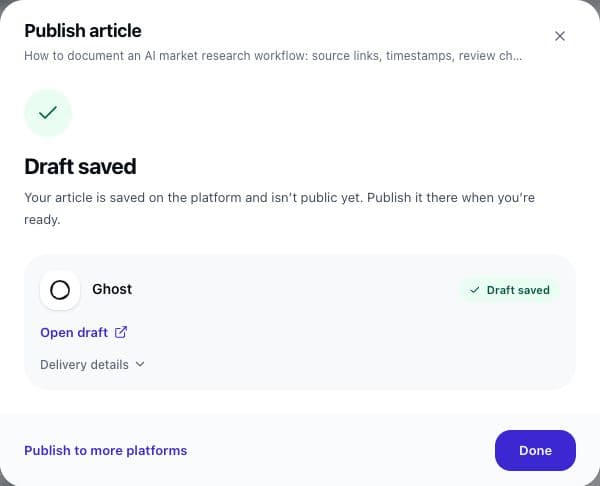
Draft saved: the destination confirmed a draft. Live: it confirmed a public post. Created: the webhook receiver accepted the request. Retrying shortly: the destination asked Serpio to slow down and a retry is scheduled. Check destination: no clear answer came back; look at the destination before sending again. Publishing failed: the request was rejected; the row shows the reason and a Review connection link when the connection is the cause.
- 6
Open the post
Each successful row has a link: Open draft, View live article, or Open destination for a webhook. Delivery details expands to show notes, such as an omitted label or an image that could not be uploaded.
What happens next
The article's status becomes published once one destination confirms. Every destination in the send received the same frozen snapshot, so edits you make afterwards in Serpio do not reach the post; change it at the destination. A destination that already has this article is not offered again. Reopen the dialog later and Sent to lists each confirmed destination with its link, while the Publishing history toggle shows earlier attempts with timestamps and errors. A row in Check destination or Publishing failed carries its own Publish button for a retry once the cause is fixed.
If something looks off
- Check destination: open the destination and search for the title. If it is absent, reopen Publish article, tick the destination, tick "I checked the destination and confirmed this article was not created", and press Publish. If it is present, leave it; Serpio will not send a duplicate.
- Published live instead of draft as the heading: you asked for a draft and the destination reported a live post. Open it there and unpublish if needed.
- Saved as draft, not live yet: live was requested but the destination confirmed a draft. Publish it in the destination.
- Every row reads Upgrade needed: the account is on Free. Use How to export an article.
- The dialog says "Connect a platform to publish your article.": nothing is connected for this site. Follow How to connect a publishing destination.
- Publishing failed with an authorization message: the connection needs a new credential. See How to manage your connections.
Go deeper
- How publishing works in Serpio for the snapshot and one-time delivery rules.
- Approval and auto-publish for what approval changes.
- Provider behaviour: WordPress, Ghost, Blogger, DEV and Forem, Webhook.
- Publishing history and retries and Troubleshooting connections when a row needs action.
- Guided exports for platforms without a connection.
Common questions
Can I publish the same article to the same destination twice?
No. One delivery per article and destination. A destination that already has the article is not offered again; edit the post there instead.
What if I only want some destinations to get it?
Yes. Manually generated articles are sent only to the destinations you select in the Publish dialog.
Does Publish make the article public?
Only on connections set to Publish live. On Create a draft it is saved unpublished at the destination, and a webhook receiver decides for itself.
Related guides
How publishing works in Serpio
Approve an article, choose where it goes, and Serpio creates it there once. The two settings every connection has, the five native destinations, the plan gate, and where to see results.
Read guideManual and scheduled publishing
How manually generated articles differ from scheduler-created articles, and how each destination controls scheduled delivery.
Read guidePublishing history, delivery statuses, and retries
What each publishing status means, what Publishing results and Publishing history show, when Serpio retries on its own, and how to retry safely after an uncertain delivery.
Read guide